
Install the Crowdio client
This page covers the public install paths Crowdio ships today. For the macOS and Windows tray apps, the intended operator path is simple: install the app, click the tray icon, and sign in with Google. Sign-in is required before you can start routing local traffic through Crowdio. Headless Linux is still the manual path, so it stays documented separately.
Quickstart
-
macOS tray: install the app and sign in with Google
Download the DMG from Download, move
Crowdio.appinto/Applications, launch it, then use the tray icon to sign in with Google. -
Windows tray: run the setup installer and sign in with Google
Download the Windows setup .exe from Download, run it, launch Crowdio from the Start menu or desktop shortcut, then sign in from the tray icon.
-
Headless Linux: keep the provisioned config
Headless installs still need a provisioned
client.device_tokenand a headless auth credential. Keep the generatedclient.api_keyor inject it withCROWDIO_API_KEY. -
Launch once and watch the first connection
Do the first run interactively so you can confirm the node registered, the local SOCKS endpoint came up, and reconnects are clean.
What you need before first launch
| Requirement | Applies to | Why it matters |
|---|---|---|
| Google account sign-in | macOS and Windows tray apps | This is the public tray onboarding flow. After sign-in, the app can provision its device token automatically and enable the traffic-routing controls. |
client.api_key or CROWDIO_API_KEY |
Headless Linux | The headless node needs a bearer credential on the node WebSocket path. Keep the dashboard-generated value or inject it as an environment variable. |
client.device_token |
Headless Linux | The CLI exits immediately if this is empty. The public desktop tray apps can mint it after Google sign-in, but headless Linux cannot. |
server.host, server.websocket_port, server.api_port |
All installs | The public packages already point at production. Most operators do not need to edit them unless they were given a different environment. |
If you installed the macOS or Windows tray app from the public download page, the intended setup is install plus Google sign-in. You should not need to hand-edit client.yaml just to get the tray online.
Headless Linux is stricter than the tray app. A missing client.device_token causes the CLI to stop immediately, and a missing or invalid headless auth credential prevents the node from completing the WebSocket login path.
Install on macOS
-
Open the DMG from the website
Download the macOS package from Download and open the
.dmg. -
Move the app into
/Applicationsand launch it onceOpen
Crowdio.appfrom Finder so macOS records the app location. If Gatekeeper blocks the app, allow it in System Settings and relaunch. -
Click the tray icon and sign in with Google
This is the only public onboarding step you should need after install. The tray uses Google sign-in to attach a Firebase token and start first-run provisioning for this machine.
-
Let the tray provision the node automatically
If no device token is cached yet, the app calls the provisioning API after sign-in and stores the provisioned identity for future launches.
-
Verify the first healthy run
Look for the menu bar status to move past startup. If you plan to route local traffic, sign in first, then enable Route My Traffic via Crowdio from the tray menu.
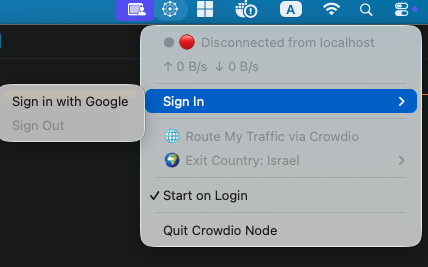
The tray can attach a Firebase ID token after Google sign-in, provision a missing device token, and persist stable identity automatically. The manual API key flow is for headless Linux, not the normal desktop tray install path.
Install on Windows
-
Download the Windows setup installer
Open Download and use the Windows card. The default installer is published as
Crowdio-vX.Y.Z-windows-amd64-setup.exewhen the setup build is available. -
Run the installer
Double-click the setup .exe and follow the installer prompts. If Windows SmartScreen warns about a new release, confirm you downloaded it from
crowdio.netbefore continuing. -
Launch Crowdio from Windows
Open Crowdio from the Start menu or desktop shortcut. The app runs as a Windows tray app, so look for the Crowdio icon in the notification area. You may need to expand hidden tray icons.
-
Sign in with Google before routing traffic
Open the tray menu and choose Sign in with Google. Crowdio requires this login before Route My Traffic via Crowdio can be enabled for browser or OS traffic.
-
Enable routing only after the node is connected
Wait for the tray status to show a connected state, then enable Route My Traffic via Crowdio. On Windows, Crowdio writes the system proxy setting to point SOCKS traffic at
127.0.0.1:1080and restores it when you turn routing off or quit.
If you are signed out, the tray keeps routing disabled and will turn off any existing Crowdio system proxy setting. Sign in again, wait for a connected status, then enable routing from the tray menu.
Install on headless Linux
The website Linux package contains the client binary and a starter client.yaml. Keep that file next to the executable unless you deliberately move it somewhere else.
-
Extract the package
Unpack the tarball into a working directory you control.
mkdir -p "$HOME/crowdio" cd "$HOME/crowdio" tar -xzf "$HOME/Downloads/crowdio-VERSION-linux-amd64.tar.gz" --strip-components=1 chmod +x ./crowdio -
Review
client.yamlbefore the first runKeep the provisioned
client.device_token. For headless auth, keep the generatedclient.api_keyor provide it throughCROWDIO_API_KEY.client: device_id: "YOUR_DEVICE_ID" device_token: "dt_..." api_key: "ck_..." server: host: proxy.crowdio.net websocket_port: 443 api_port: 443 -
Start the client manually first
Use an explicit config path so the runtime does not have to guess.
cd "$HOME/crowdio" ./crowdio --config ./client.yaml -
Optional: turn it into a systemd service
After a successful manual run, create a service file with absolute paths.
[Unit]
Description=Crowdio headless client
After=network-online.target
Wants=network-online.target

[Service]
User=YOUR_USER
WorkingDirectory=/home/YOUR_USER/crowdio
ExecStart=/home/YOUR_USER/crowdio/crowdio --config /home/YOUR_USER/crowdio/client.yaml
Restart=always
RestartSec=5

[Install]
WantedBy=multi-user.target
sudo systemctl daemon-reload sudo systemctl enable --now crowdio.service sudo journalctl -u crowdio.service -f
If the node fails here, you see the real config or auth error immediately instead of hiding it behind repeated systemd restarts.
Config reference
| Field | Required when | Notes |
|---|---|---|
client.device_id |
All installs | Stable per-install identity. The tray persists it automatically so app updates do not change the node identity. |
client.device_token |
All installs | Required node identity. The headless CLI exits if it is empty. The tray can provision it after sign-in if needed. |
client.api_key |
Headless Linux | Bearer auth for the node WebSocket on headless installs. CROWDIO_API_KEY overrides the value on disk. |
server.host |
All installs | Use proxy.crowdio.net for production unless your operator gave you a different environment. |
server.websocket_port |
All installs | Use 443 for the public production service. |
server.api_port |
Tray provisioning | The tray needs the API endpoint for first-run provisioning. Production also uses 443. |
auth.firebase_api_key, auth.google_client_id, auth.google_client_secret |
Desktop tray sign-in | Needed for the tray's Google sign-in flow. Headless Linux does not use them. |
The tray checks bundled client.yaml first, then falls back to the user config directory. Stable identity lives under the OS user config directory, such as ~/Library/Application Support/crowdio/identity.yaml on macOS or %AppData%\crowdio\identity.yaml on Windows.
Prefer ./crowdio --config ./client.yaml so the config path is explicit. That avoids surprises from default search paths or a moved working directory.
How to verify the node is healthy
- Watch the first launch for a successful config load and a clean node registration.
- On desktop tray installs, sign in with Google before enabling Route My Traffic via Crowdio.
- Confirm the local SOCKS listener is available at
127.0.0.1:1080if you expect local routing. - Make sure the correct device appears online in the dashboard or operator tooling.
- On Linux, restart the service once and confirm it reconnects cleanly.
Troubleshooting
The headless client exits immediately
Check client.device_token first. The CLI fails fast when that value is empty.
The node keeps reconnecting but never comes online
Recheck server.host, server.websocket_port, and the headless auth credential. On Linux, a missing or invalid client.api_key causes the WebSocket auth path to fail.
The tray stays stuck on provisioning
Make sure you completed Google sign-in, then check that the bundled tray config still points at a reachable API endpoint. The public package already includes the Google and Firebase auth settings, so this usually points to a connectivity or packaging problem rather than a user edit.
The routing menu is disabled
Sign in with Google first, then wait for the node to connect. The tray intentionally blocks traffic routing while signed out.
Windows browser traffic does not use Crowdio
Confirm Route My Traffic via Crowdio is enabled in the tray menu, then restart the browser if it was open before the system proxy changed. Some browsers only read Windows proxy settings at startup.
You edited the wrong config file
On desktop tray installs, check whether the active settings are coming from the app bundle, the fallback user config file, or the persisted identity file. On Linux, use --config so the source of truth is obvious.
Manual start works but systemd fails
Use absolute paths in the unit file and confirm the service user can read both the binary and client.yaml.